


176
社区成员
 发帖
发帖 与我相关
与我相关 我的任务
我的任务
 分享
分享| The Link Your Class | https://bbs.csdn.net/forums/ssynkqtd-04?typeId=5171412 |
|---|---|
| The Link of Requirement of This Assignment | https://bbs.csdn.net/topics/617332156 |
| The Aim of This Assignment | Implement a visual calculator |
| MU STU ID and FZU STU ID | 21127051_832102115 |
Link to the finished project code: https://github.com/Adandan111/Calculator
This blog post documents the process and code for completing a simple visual calculator. It mainly uses Python's GUI library Tkinter to create a simple calculator application. Tkinter provides a set of tools and components for creating GUI applications, including Windows, labels, buttons, text boxes, and more. Finally, use the third-party library Pyinstaller to turn python code into an executable exe file.
| Personal Software Process Stages | Estimated Time(minutes) | Actual Time(minutes) |
|---|---|---|
| Planning | 60 | 70 |
| • Estimate | 60 | 70 |
| Development | 430 | 465 |
| • Analysis | 30 | 40 |
| • Design Spec | 10 | 10 |
| • Design Review | 30 | 35 |
| • Coding Standard | 10 | 10 |
| • Design | 50 | 60 |
| • Coding | 180 | 180 |
| • Code Review | 60 | 70 |
| • Test | 60 | 60 |
| Reporting | 80 | 85 |
| • Test Repor | 20 | 25 |
| • Size Measurement | 20 | 20 |
| • Postmortem & Process Improvement Plan | 40 | 40 |
| Sum | 570 | 620 |
When I started to solve this problem, I first considered whether to use Python's GUI library Tkinter to create this simple visual calculator application. After having this idea, I immediately went to the CSDN official website and Google to search for corresponding information to understand whether this technology could meet the needs of the project, that is, addition, subtraction, multiplication, division, trigonometric functions, and power operations.
Through information search, I confirmed that Tkinter is Python's own GUI library, which is easy to learn and use, and can quickly create simple GUI applications. Moreover, the calculator is a common GUI application that requires the use of buttons, text boxes, event handling and other functions. Tkinter provides the implementation of these functions. In addition, Python's math library provides functions for calculating mathematical operations such as trigonometric functions and π, and is also used in the implementation of calculators. So, I understand this approach works.
Next, considering the convenience for users, I decided to convert the calculator into an exe executable file. In this way, users can directly double-click to run without installing the Python environment and related libraries, which is convenient and fast. Moreover, Python provides a variety of third-party libraries, such as PyInstaller, cx_Freeze, etc., which can easily convert Python code into exe executable files without writing complex scripts or command lines. In this assignment, the Pyinstaller library was used.
This code is organized using the Model-View-Controller (MVC) design pattern. The model is the code that performs the calculations and evaluates the expressions entered by the user. The view is the graphical user interface (GUI) that the user interacts with, which includes the buttons and the display area for the results. The controller is the code that handles the user's input and updates the model and view accordingly.
In this specific implementation, the model is represented by the eval() function that evaluates the mathematical expressions entered by the user. The view is represented by the GUI elements created using the tkinter library, including the buttons and the display area for the results. The controller is represented by the button_click() function that handles the user's input and updates the model and view accordingly.
The code also uses a grid layout to organize the buttons and the display area in a visually appealing way. Additionally, the code uses comments to explain the purpose of each section and function, which improves its readability and maintainability.
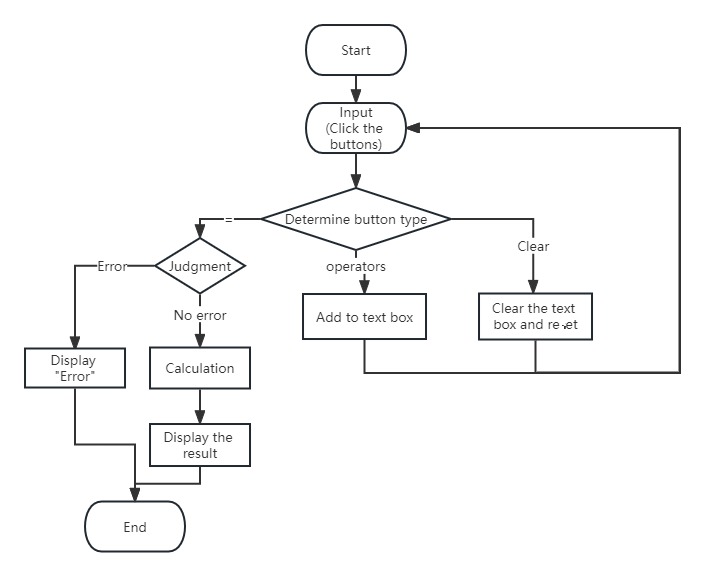
Import the tkinter and math modules:
import tkinter as tk
import math
Create the main window:
This part of code creates a main window named root and sets the window title, background color, and size.
root = tk.Tk()
root.title("Simple Calculator")
root.configure(bg="#B8BBDE")
root.geometry("300x400")
Create a text box that displays the results: This part of the code creates a text box to display the calculation results, and sets the size, font and background color of the text box.
result_display = tk.Entry(root, width=20, font=("Helvetica", 32))
result_display.grid(row=0, column=0, columnspan=4, sticky="nsew")
result_display.configure(bg="white")
Set the weight of the grid layout so that the buttons are the same size:
for i in range(2):
    root.grid_rowconfigure(i, weight=1)
    root.grid_columnconfigure(i, weight=1)
Create a button click event:
Here a button click event function button_click is defined, which is used to handle button click events.
If the text content of the button is the equal sign "=", then the content in the current text box will be processed, replacing the exponentiation symbol "^" with "**", and replacing the trigonometric functions with "math.sin", "math.cos ", "math.tan", replace π with the value of math.pi, then use the eval function to calculate the value of the expression, and display the result in the text box. If an exception occurs during calculation, "Error" is displayed in the text box.If the button's text content is "C", clear the content in the text box.If the text content of the button is a left bracket "(" or a right bracket ")", insert the corresponding bracket in the text box. If the button's text content is "π", insert the π symbol in the text box.If the button's text content is another character, insert that character in the text box.
def button_click(event):
    current_text = result_display.get()
    button_text = event.widget.cget("text")

    if button_text == "=":
        try:
            # 替换幂运算符号并计算
            current_text = current_text.replace("^", "**")
            # 替换三角函数并计算
            current_text = current_text.replace("sin", "math.sin")
            current_text = current_text.replace("cos", "math.cos")
            current_text = current_text.replace("tan", "math.tan")
            # 替换π
            current_text = current_text.replace("π", str(math.pi))
            result = eval(current_text)
            result_display.delete(0, tk.END)
            result_display.insert(tk.END, str(result))
        except Exception as e:
            result_display.delete(0, tk.END)
            result_display.insert(tk.END, "错误")
    elif button_text == "C":
        result_display.delete(0, tk.END)
    elif button_text in ["(", ")"]:
        result_display.insert(tk.END, button_text)
    elif button_text == "π":
        result_display.insert(tk.END, "π")
    else:
        result_display.insert(tk.END, button_text)
Creating buttons: Here a list of buttons containing all the button characters is created and all the buttons are created using a loop. Each button is bound to the click event button_click, and the background color of the button is set.
buttons = [
    '7', '8', '9', '/',
    '4', '5', '6', '*',
    '1', '2', '3', '-',
    '0', '.', '=', '+',
    'C',
    'sin', 'cos', 'tan', '^',
    '(', ')',
    'π'
]

row, col = 1, 0
for button_text in buttons:
    button = tk.Button(root, text=button_text, font=("Helvetica", 20))
    button.grid(row=row, column=col, sticky="nsew")
    col += 1
    if col > 3:
        col = 0
        row += 1

    button.bind("<Button-1>", button_click)
    button.configure(bg="#E6E6FA")
Finally, run the application and enter the main loop, waiting for user interaction:
root.mainloop()
Create a spec file:
pyinstaller --onefile calculator1.py
Generate executable file:
pyinstaller calculator1.spec
After executing the above command, PyInstaller will automatically package the code into an executable file and save the executable file in the dist directory.
The complete code is as follows:
import tkinter as tk
import math
# 导入了 tkinter 模块用于创建 GUI 界面,以及 math 模块用于执行数学运算。

# 创建主窗口
root = tk.Tk()
root.title("Simple Calculator")
root.configure(bg="#B8BBDE")  # 设置窗口背景颜色

# 设置主窗口大小
root.geometry("300x400")

# 创建显示结果的文本框
result_display = tk.Entry(root, width=20, font=("Helvetica", 32))
result_display.grid(row=0, column=0, columnspan=4, sticky="nsew")
result_display.configure(bg="white")  # 设置文本框背景颜色

# 设置网格布局的权重,使按钮大小相同
for i in range(2):
    root.grid_rowconfigure(i, weight=1)
    root.grid_columnconfigure(i, weight=1)

# 创建按钮点击事件
def button_click(event):
    current_text = result_display.get()
    button_text = event.widget.cget("text")

    if button_text == "=":
        try:
            # 替换幂运算符号并计算
            current_text = current_text.replace("^", "**")
            # 替换三角函数并计算
            current_text = current_text.replace("sin", "math.sin")
            current_text = current_text.replace("cos", "math.cos")
            current_text = current_text.replace("tan", "math.tan")
            # 替换π
            current_text = current_text.replace("π", str(math.pi))
            result = eval(current_text)
            result_display.delete(0, tk.END)
            result_display.insert(tk.END, str(result))
        except Exception as e:
            result_display.delete(0, tk.END)
            result_display.insert(tk.END, "错误")
    elif button_text == "C":
        result_display.delete(0, tk.END)
    elif button_text in ["(", ")"]:
        result_display.insert(tk.END, button_text)
    elif button_text == "π":
        result_display.insert(tk.END, "π")
    else:
        result_display.insert(tk.END, button_text)

# 创建按钮
buttons = [
    '7', '8', '9', '/',
    '4', '5', '6', '*',
    '1', '2', '3', '-',
    '0', '.', '=', '+',
    'C',
    'sin', 'cos', 'tan', '^',  # 添加三角函数和幂运算按钮
    '(', ')',  # 添加左右括号按钮
    'π'  # 添加π按钮
]

row, col = 1, 0
for button_text in buttons:
    button = tk.Button(root, text=button_text, font=("Helvetica", 20))
    button.grid(row=row, column=col, sticky="nsew")
    col += 1
    if col > 3:
        col = 0
        row += 1

    button.bind("<Button-1>", button_click)
    button.configure(bg="#E6E6FA")  # 设置按钮背景颜色

# 运行应用程序
root.mainloop()
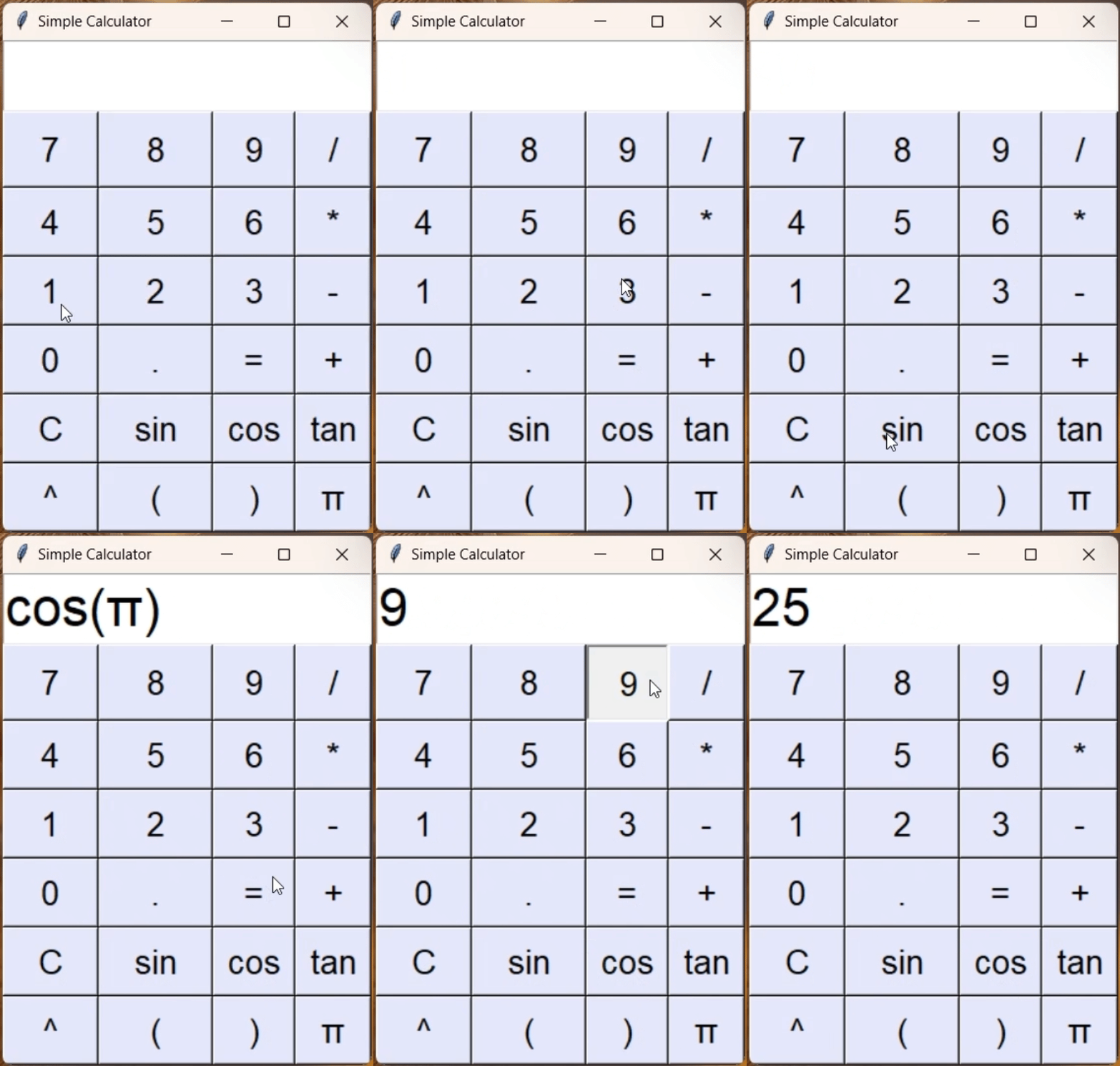
In the above gif, I show addition, subtraction, multiplication and division, trigonometric functions, power operations, and the situation when there is an error in the input.
Through this assignment, I mastered how to use Python's built-in tkinter module to quickly create a GUI interface and implement basic arithmetic operations. The code is simple and easy to understand, the logic is clear, and it is easy to maintain.
However, I also realize that there are still areas that can be improved in this assignment. In the future, I plan to add more calculation functions, such as logarithmic functions. And the history record function makes it convenient for users to view and manage.


